WhatsApp Ticketing System — Product scope & user guide
1. Scope summary
The system turns inbound WhatsApp (and other channel) messages into structured tickets with a React dashboard for agents, a Node/ Fastify API with Socket.IO, and PostgreSQL (self-hosted Supabase stack in Docker). Admins manage users, audit logs, and channels; staff agents handle tickets and contacts; company portal users see a reduced UI focused on their organisation’s tickets.
2. Roles: Admin, staff user, and company portal user
| Role | Typical use | Navigation (high level) |
|---|---|---|
admin |
Full control: users, audit, channels, companies, settings, OpenAI keys (in-app). | Dashboard, Tickets, Contacts, Channels, Companies, Admin (Users, Audit Log), Settings. |
user (staff) |
Agents: tickets, contacts, channels, companies; no user management or audit log. | Same as admin except no Admin section (Users, Audit Log). |
company_user |
Customer org users via web portal (not WhatsApp). | Dashboard and Tickets only; no Contacts, Channels, Companies, Settings, or Admin. |
3. User guide
3.1 Sign in
Open http://localhost:3000/login (or your production URL). Enter email and password, then
Sign in. The default seeded admin (when using Docker defaults) is documented in the project README.
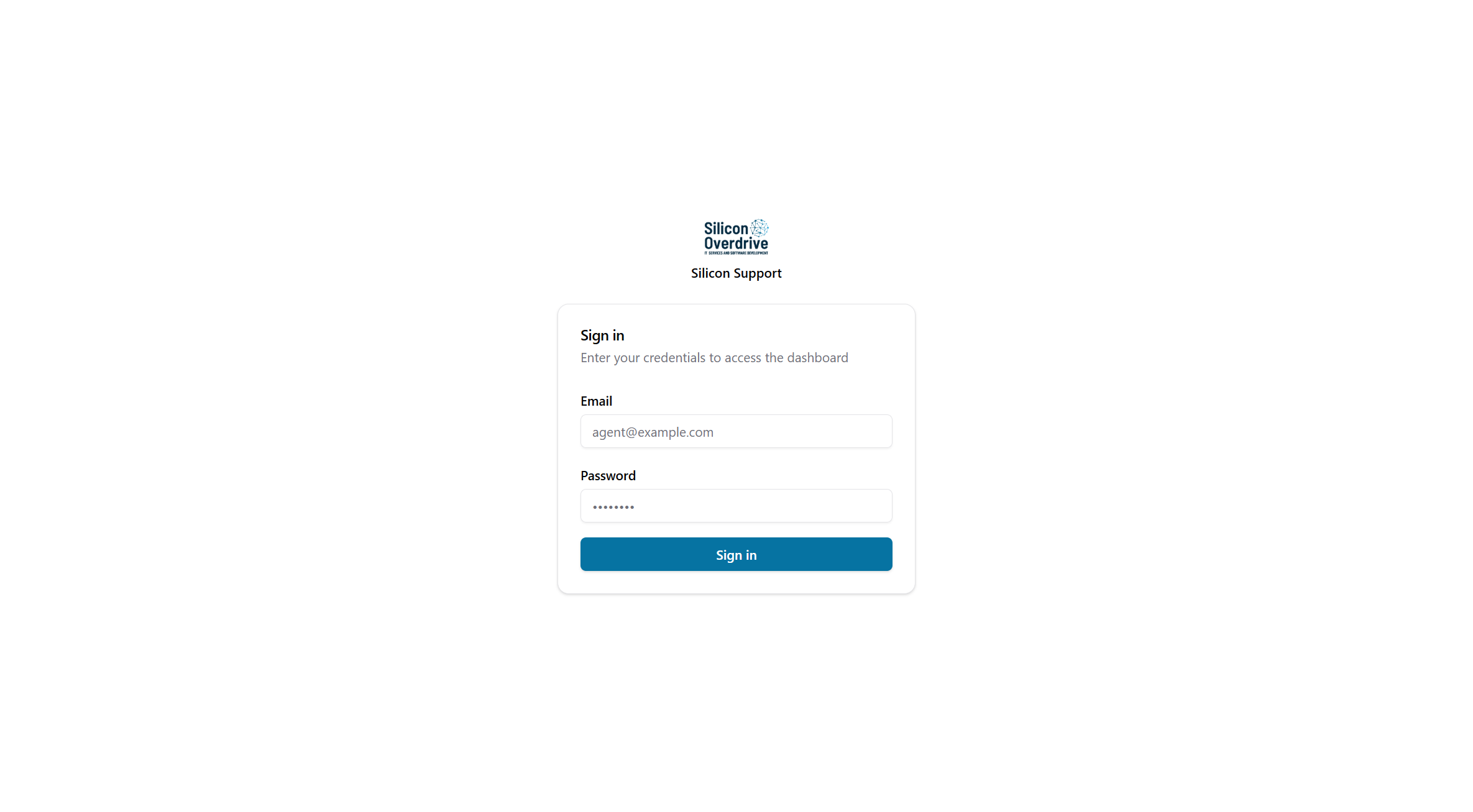
/login (Silicon Support).3.2 Admin view — dashboard
After signing in as an admin, the sidebar shows the full staff menu plus the Admin section (Users, Audit Log). The dashboard summarises open tickets, priority, due today, channel status, and recent tickets.
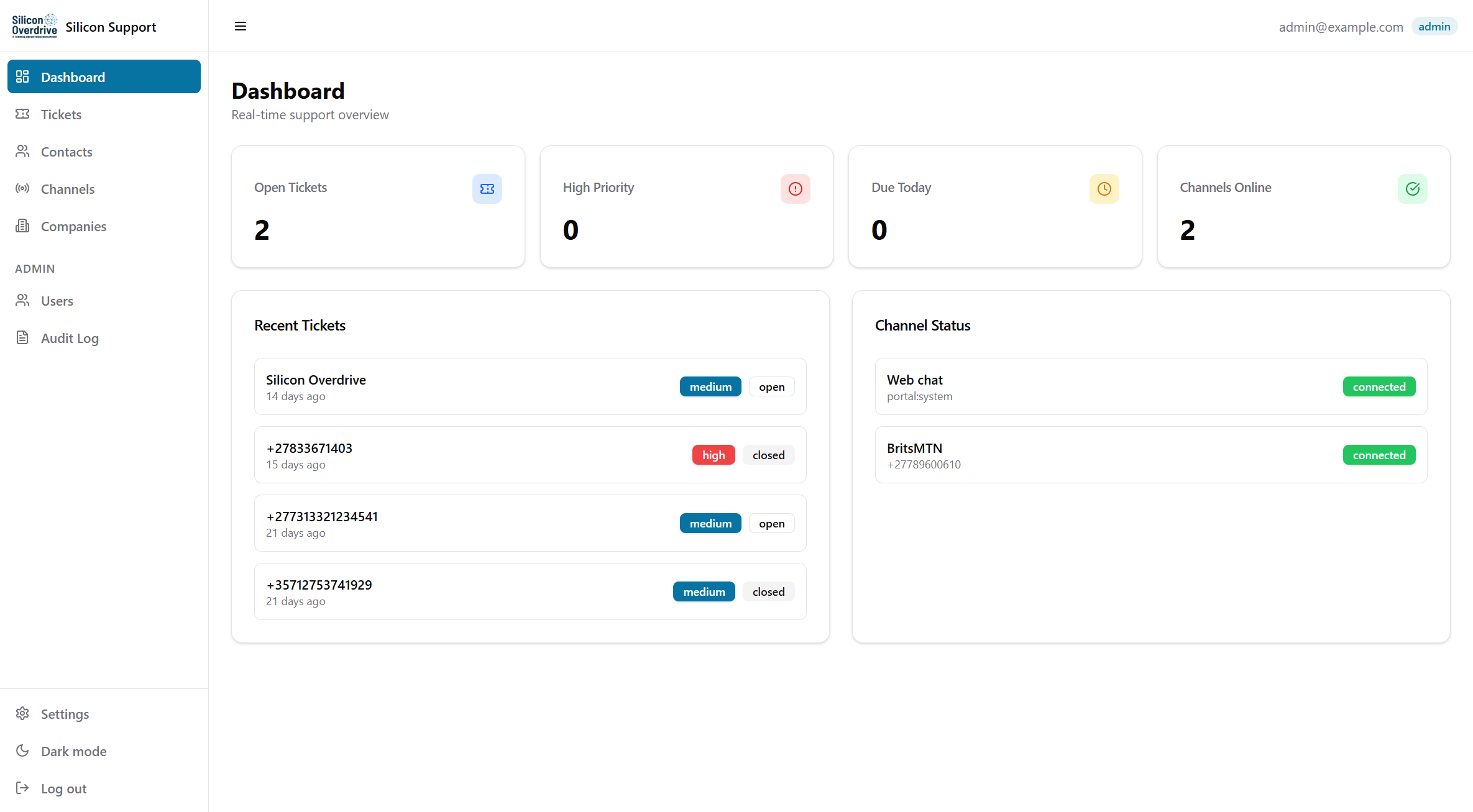
/) with Admin navigation visible.3.3 Admin view — user management
Under Admin → Users, create users and switch roles between User and Admin; deactivate or reactivate accounts.
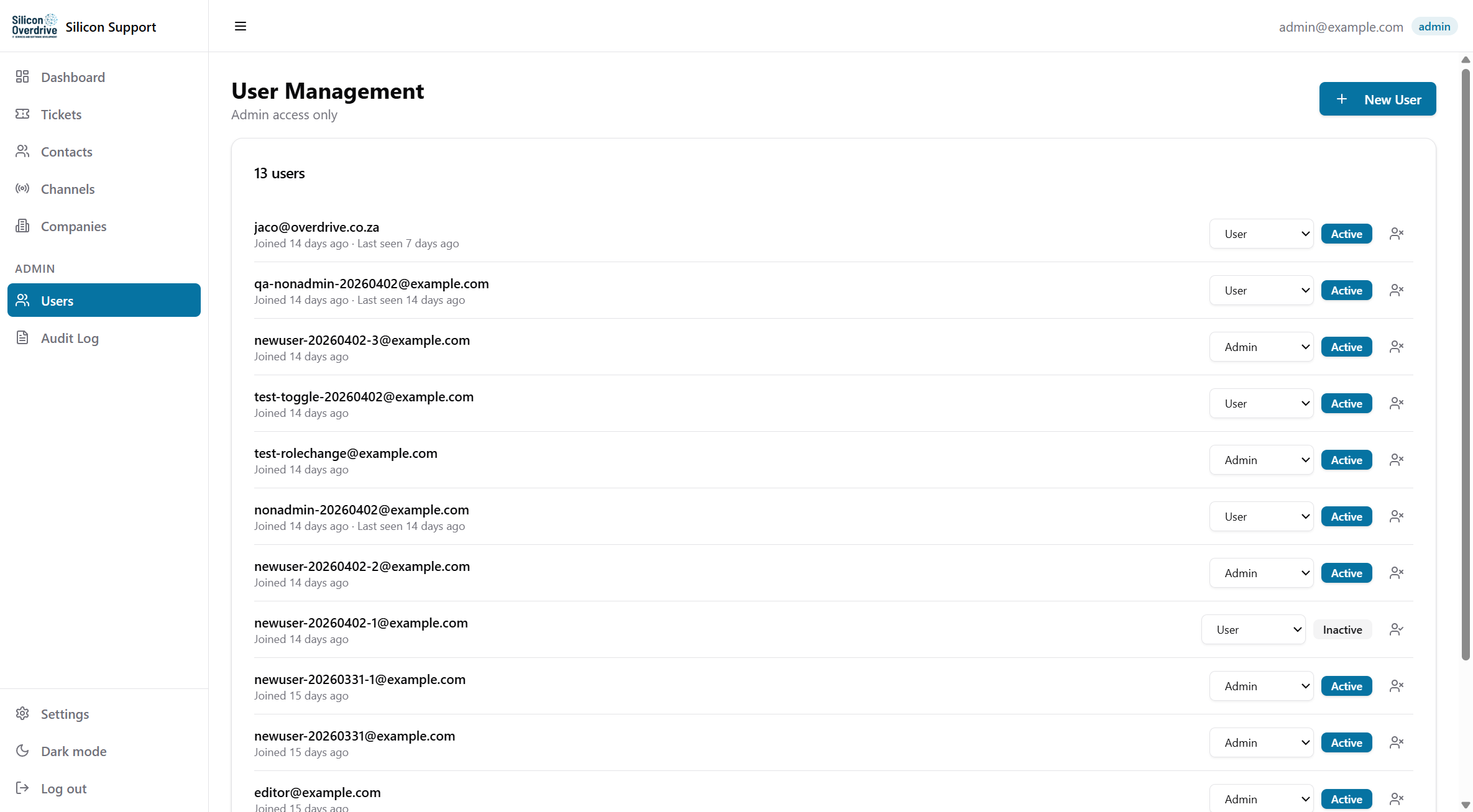
/admin/users), admin only.3.4 Staff user view
Staff with role user use the same dashboard and ticket workflows as admins, but the sidebar
does not include Users or Audit Log. A dedicated screenshot for a non-admin session
was not captured in this pass (see To-do below); behaviour is defined in the application routes.
3.5 Tickets and channels (staff)
Open Tickets for the queue; open a row for the conversation thread. Use Channels to add WhatsApp numbers, email, and web chat.
WhatsApp providers. Add Channel asks for a provider: Baileys / QR (scan a QR code) or
Africa's Talking (connects immediately; admins copy the channel's webhook URL from the channel detail page into the
Africa's Talking dashboard). Africa's Talking uses one deployment account (AFRICASTALKING_USERNAME /
AFRICASTALKING_API_KEY, both must be non-empty before such a channel can be created) and supports direct text plus image, voice and document media; templates are indicated but have no admin UI.
Groups, QR pairing and session reconnect are Baileys-only, so those actions are disabled on Africa's Talking channels. Channel cards show
provider and capability badges. Outbound media is sent as a hosted link that Africa's Talking fetches itself, so
SUPABASE_PUBLIC_URL must be a publicly reachable HTTPS address or media sends fail while text keeps working.
An Africa's Talking channel shows as disconnected as soon as the provider rejects the account credentials on a send, and
returns to connected on the next successful send; Baileys channels still take their status from the QR session.
Because there is no Reconnect for this provider, a disconnected Africa's Talking channel keeps its ticket reply box usable:
staff correct the credentials in the deployment configuration and the next send both delivers and restores the channel.
A disconnected Baileys channel still blocks replies until its session is reconnected.
Requires migration 028_channel_whatsapp_provider.sql; rolling it back needs a maintenance procedure (see README) that first moves Africa's Talking tickets to a Baileys channel. A real Africa's Talking callback with live
credentials has not yet been exercised.
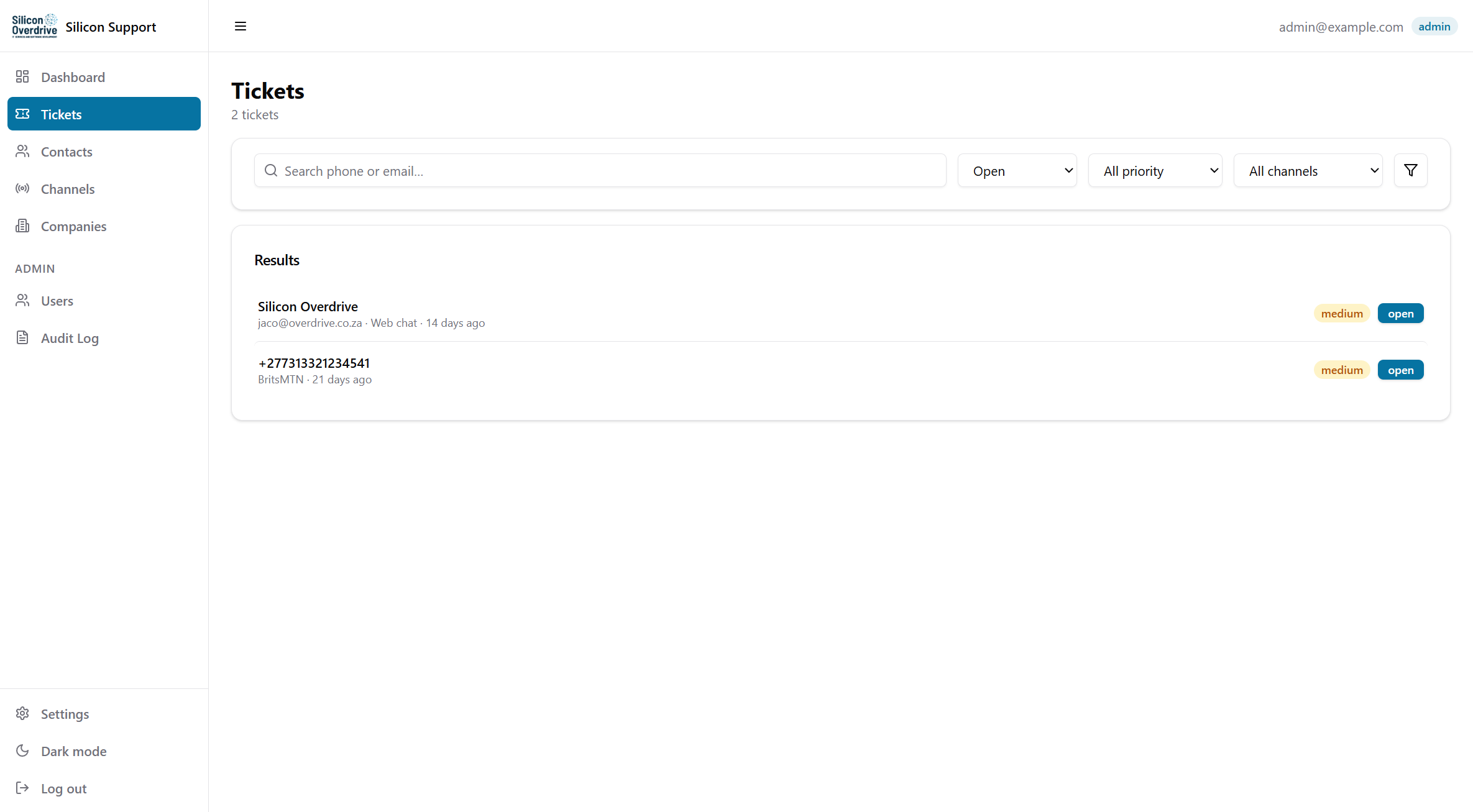
/tickets), captured from http://localhost:3000.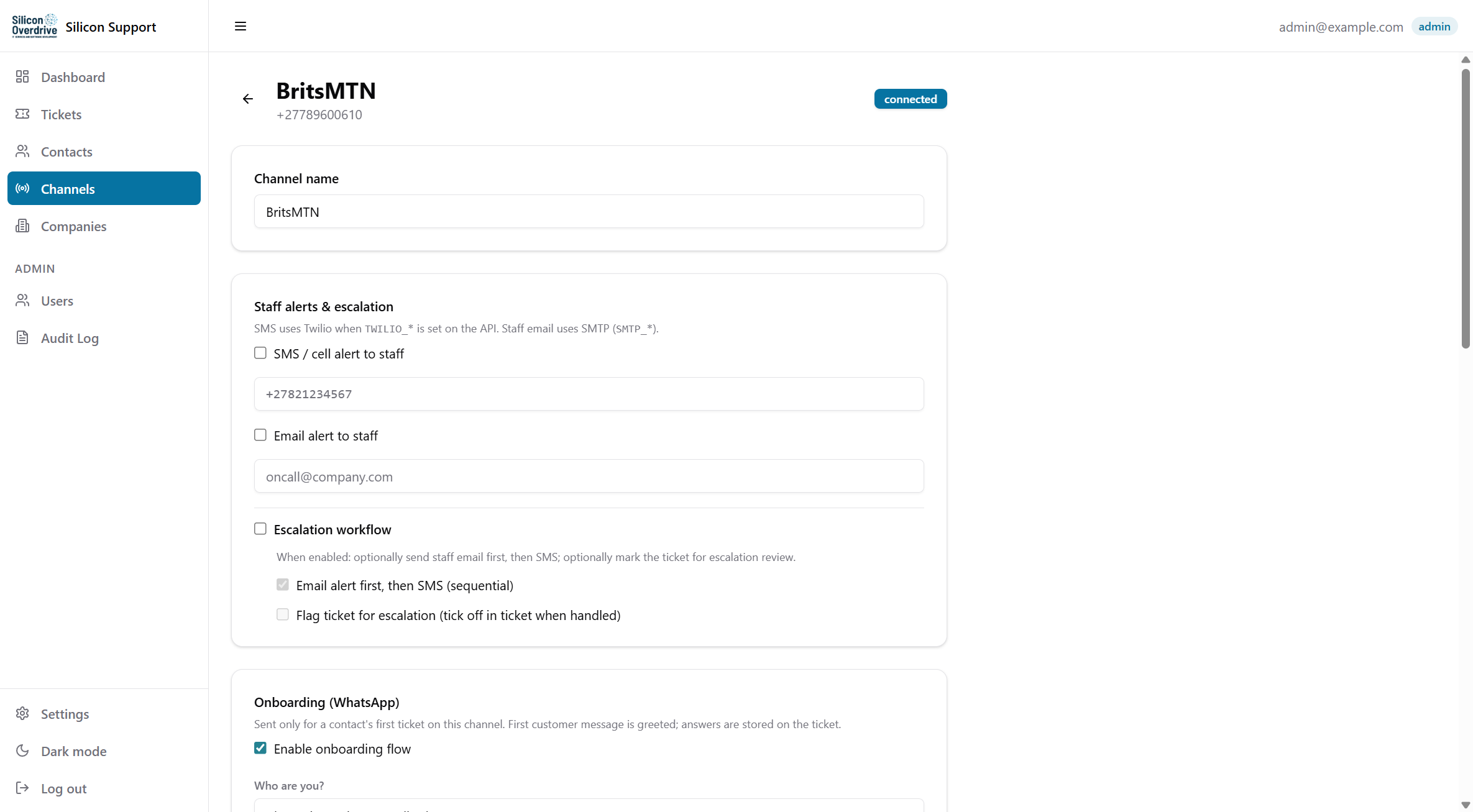
http://localhost:3000.3.6 Company portal user
Portal accounts are created under Companies (staff). Those users sign in at the same
/login URL but see only Dashboard and Tickets. Messaging uses the portal API; see README for
POST /api/v1/portal/messages.
A company may have multiple open tickets at once (same org, same portal user, or multiple
WhatsApp numbers linked to the company). On the Tickets page, Start ticket opens a modal and
always creates a new ticket (force_new). Replying inside an existing ticket keeps messages on
that thread. Staff and automated inbound without an explicit ticket id attach to the most recent
open ticket for that contact and channel.
4. Deployment
4.1 Linux / macOS (Git + Docker)
- Copy
.env.exampleto.envand configure secrets (see README). - From the repository root:
docker compose up --build(or usedeploy.sh). - Seed admin:
docker compose exec api npm run seed(defaults in README). - Optional:
./deploy.sh migrateorMIGRATE=1 ./deploy.shto applysupabase/migrations/*.sqlto the runningdbcontainer after deploy (existing DBs).
4.2 Windows (one-click)
- deploy.bat — double-click for pull, build, and
docker compose up -d --build --force-recreate. - deploy.bat migrate — same as above, then runs SQL migrations against Postgres.
- deploy-with-migrate.bat — shortcut for deploy + migrate.
set FULL_REBUILD=1before running for a clean image rebuild;set NO_PAUSE=1to skip the closing pause for scripts.
After containers are up, configure platform and account options in the web app (OpenAI key in the database, appearance, password).
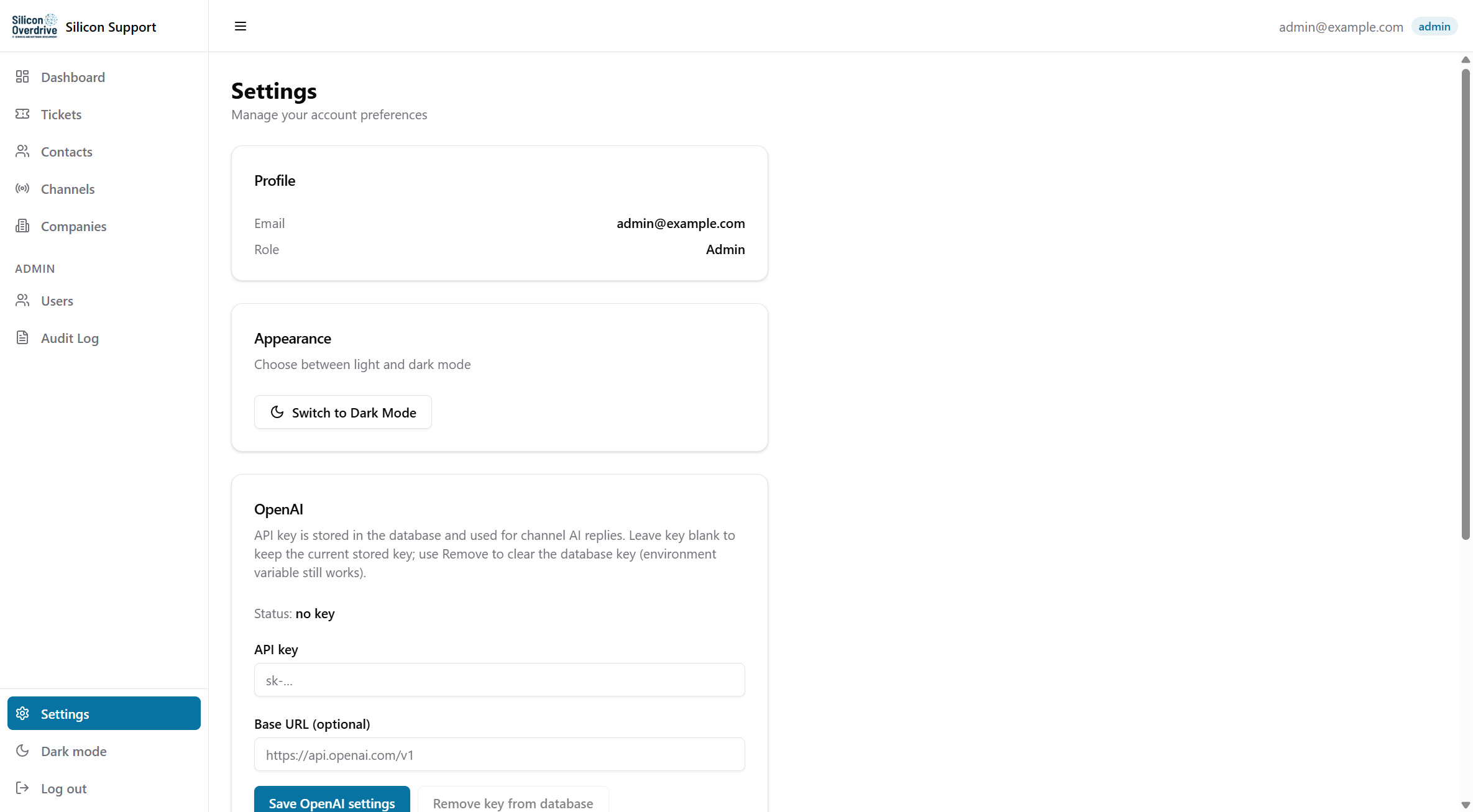
/settings) after deployment, captured from http://localhost:3000.4.3 Service URLs (local Docker defaults)
| App | http://localhost:3000 |
|---|---|
| API | http://localhost:3001 |
| Supabase Studio | http://localhost:8002 (mapped from container port; see docker-compose.yml) |
5. To-do / follow-ups
- Add a staff (
userrole) dashboard screenshot after login with a known non-admin test account (password not verified in this session). - Add a company portal user screenshot (sidebar with only Dashboard + Tickets).
- Keep migration notes aligned with README: on some DBs, use
supabase_admininstead ofpostgresforpsqlwhen objects are owned by Supabase roles. - Export this HTML to PDF if a formal client deliverable is required (print stylesheet not included).