Email Campaigner — Scope & User Guide
1. Project overview
Email Campaigner is a self-hosted, web-based email marketing platform. It allows teams to manage contacts, build email templates, send bulk campaigns, track opens/clicks, and send one-off transactional emails — all from a single dashboard.
Key capabilities:
- Create and manage email campaigns with draft/sent lifecycle
- Import contacts via CSV and organise them into mailing lists
- Design email templates with a visual editor (GrapesJS) or MJML
- Send campaigns to targeted lists with batch processing
- Track opens, clicks, bounces, and unsubscribes per campaign
- Send transactional (one-off) emails outside of campaigns
- View analytics with per-campaign performance metrics
- Configure SMTP and sender defaults from the UI
2. Technology stack
| Layer | Technology |
|---|---|
| Frontend | React 18 + TypeScript, Vite, Tailwind CSS, React Router |
| API | Express (Node.js / TypeScript) |
| Database | PostgreSQL |
| Auth | Supabase (GoTrue) — JWT-based sessions |
| Gateway | Kong (API gateway) |
| Nodemailer over SMTP (MailHog in dev) | |
| Template engine | GrapesJS (visual), MJML (code), Handlebars (merge fields) |
| Infrastructure | Docker Compose (all services) |
3. Feature scope
In scope (current)
| Feature | Status |
|---|---|
| Authentication (login / sign-up / sign-out / forgot password) | Implemented |
| Dashboard with KPI cards and recent campaigns | Implemented |
| Campaign CRUD (create, edit, view, delete) | Implemented |
| Campaign sending with batch processing | Implemented |
| Test email sends | Implemented |
| Contact management (CRUD + CSV import) | Implemented |
| List management (create, edit, assign contacts) | Implemented |
| Template editor (GrapesJS visual + MJML code) | Implemented |
| Open / click / bounce / unsubscribe tracking | Implemented |
| Analytics dashboard per campaign | Implemented |
| Transactional email sending | Implemented |
| App settings (SMTP, sender defaults) | Implemented |
| User management (admin-only) | Implemented |
| Dark / light theme toggle | Implemented |
| AI enrichment (LLM per recipient, human review, enriched send) | Implemented |
| Reply mailbox (Microsoft 365 IMAP, reply-to-unsubscribe, forwarding) | Implemented |
Out of scope (future)
- Marketing automation / journey orchestration
- Fully autonomous bulk copy without an approval step (use enrichment + review instead)
- Advanced segmentation engine
- Scheduling / send-time optimisation
- Native mobile app
4. Screen-by-screen user guide
4.1 Login
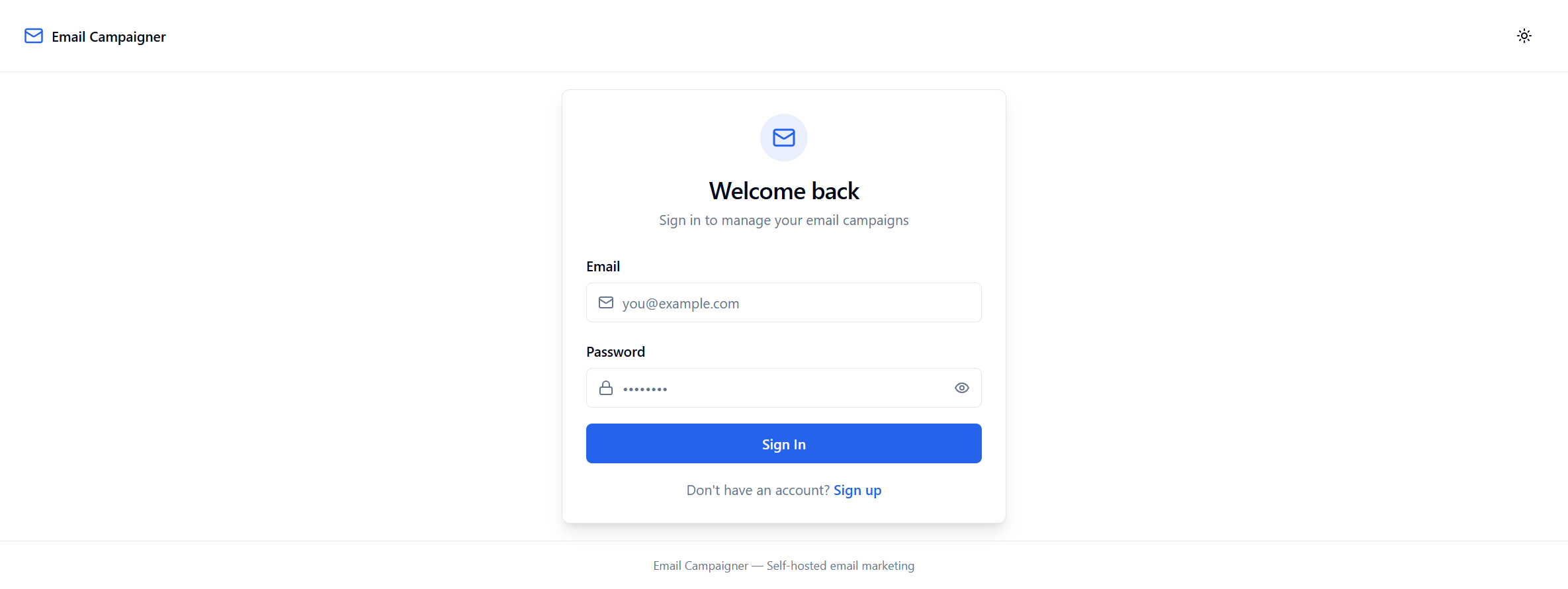
URL: /login
What you see:
- The Email Campaigner logo and app name in the top-left corner
- A centered card with the heading “Welcome back” and subtitle “Sign in to manage your email campaigns”
- Email input field (placeholder:
you@example.com) - Password input field with a show/hide toggle; in login mode, Forgot password? opens email-only reset request
- Sign In button (blue, full-width)
- A “Don’t have an account? Sign up” link below
- A theme toggle button (sun/moon icon) in the top-right corner
- Footer text: “Email Campaigner — Self-hosted email marketing”
How to use:
- Enter your email address and password
- Click Sign In
- You will be redirected to the Dashboard on success
- If you don’t have an account, click Sign up to register
Forgot password: Click Forgot password?, enter your email, then Send reset link. Open the link in the message (it opens /reset-password), set a new password, and you are signed in to the Dashboard. Add the exact redirect URL (e.g. http://localhost:8098/reset-password) to Supabase Auth redirect allow-list; the app uses the current browser origin for redirectTo.
4.2 Dashboard
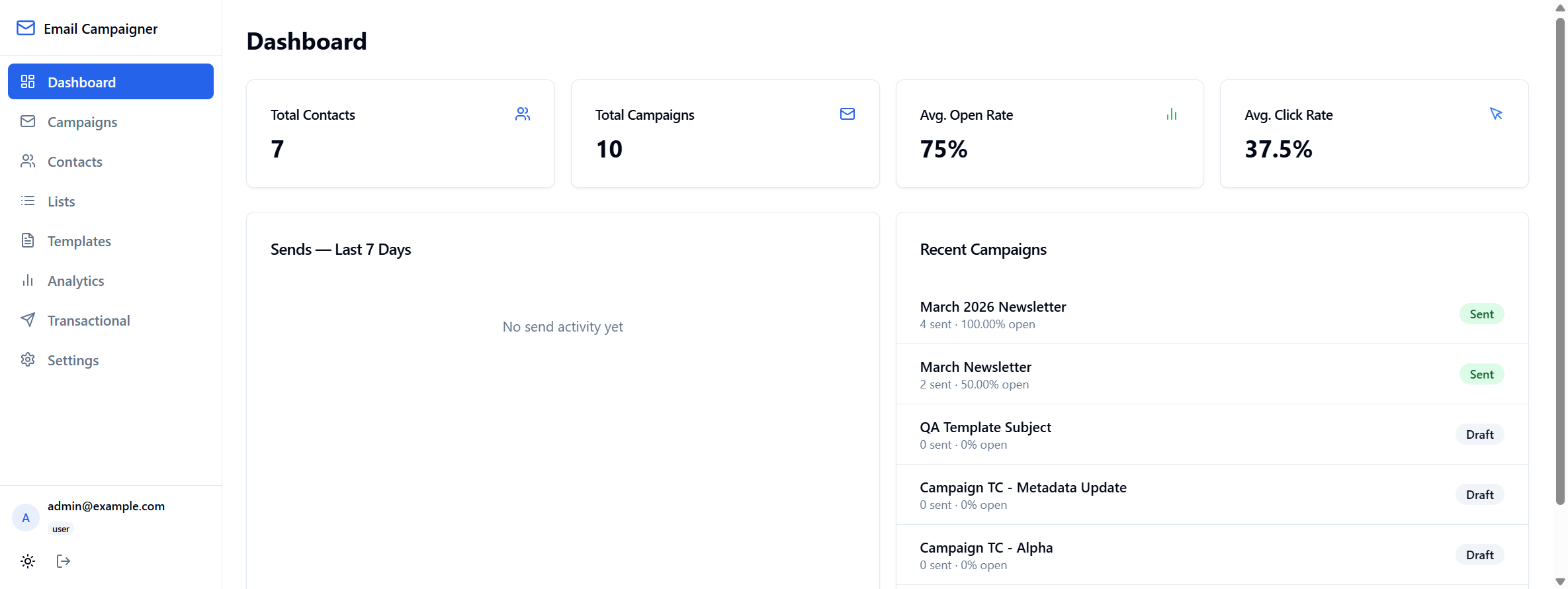
URL: / (root, after login)
What you see:
Sidebar (left): Persistent navigation with links to all sections:
- Dashboard (highlighted when active)
- Campaigns, Contacts, Lists, Templates, Analytics, Transactional, Settings
- Logged-in user info at the bottom (email, role)
- Theme toggle and Sign out button
Main area:
- Page heading: “Dashboard”
- Four KPI cards across the top: Total Contacts, Total Campaigns, Avg. Open Rate, Avg. Click Rate
- Sends — Last 7 Days — chart area (shows “No send activity yet” when empty)
- Recent Campaigns — list with name, send count, open %, status badge (Sent or Draft)
How to use:
- Use the Dashboard for a quick health check of your email operations
- Click any sidebar link to navigate to that section
- The KPI cards update automatically based on campaign data
4.3 Campaigns
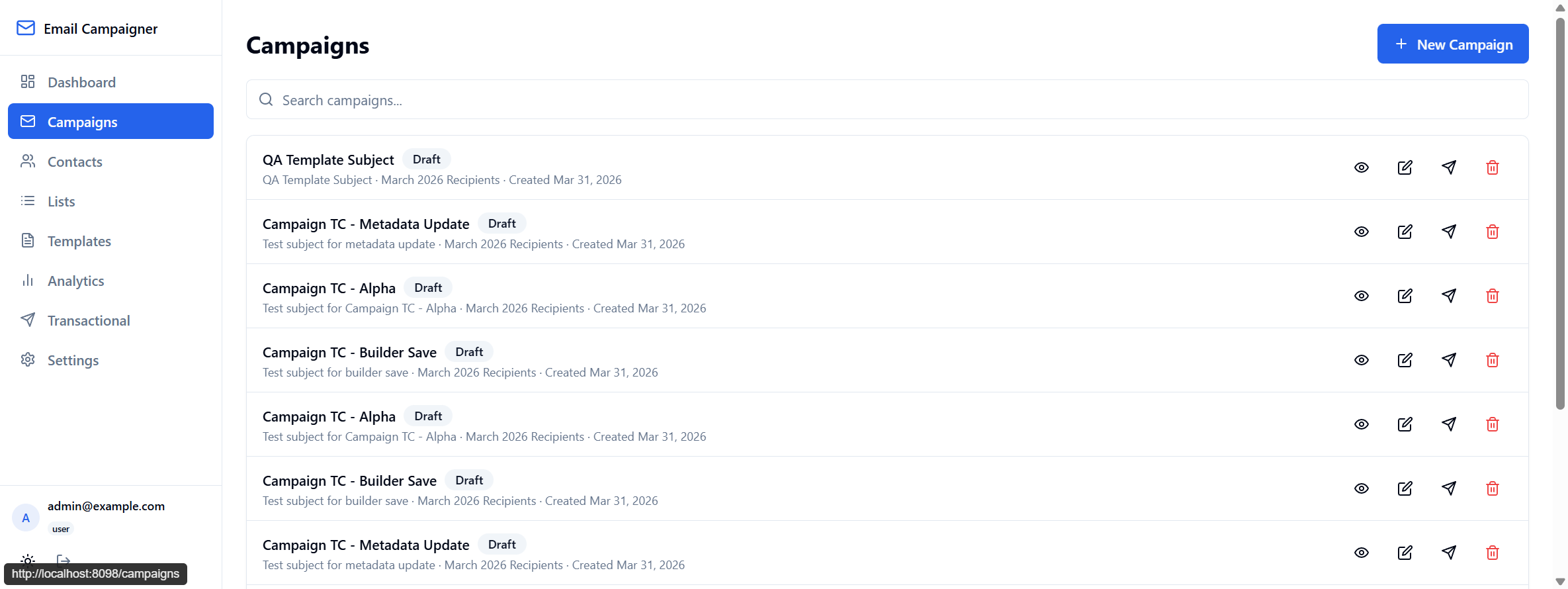
URL: /campaigns
What you see:
- Page heading: “Campaigns”
- + New Campaign button (top-right, blue)
- Search bar to filter campaigns by name
- Campaign list — each row: name, status badge, subject/list/date, sent campaigns show send/open/click stats, action buttons (view, edit, send, delete)
How to use:
- Click + New Campaign to start a new campaign
- Fill in the campaign name, subject, sender details, pick a list and template
- Use the search bar to find campaigns by name
- Use the eye, pencil, paper plane, and trash icons to view, edit, send, or delete
4.4 Campaign detail
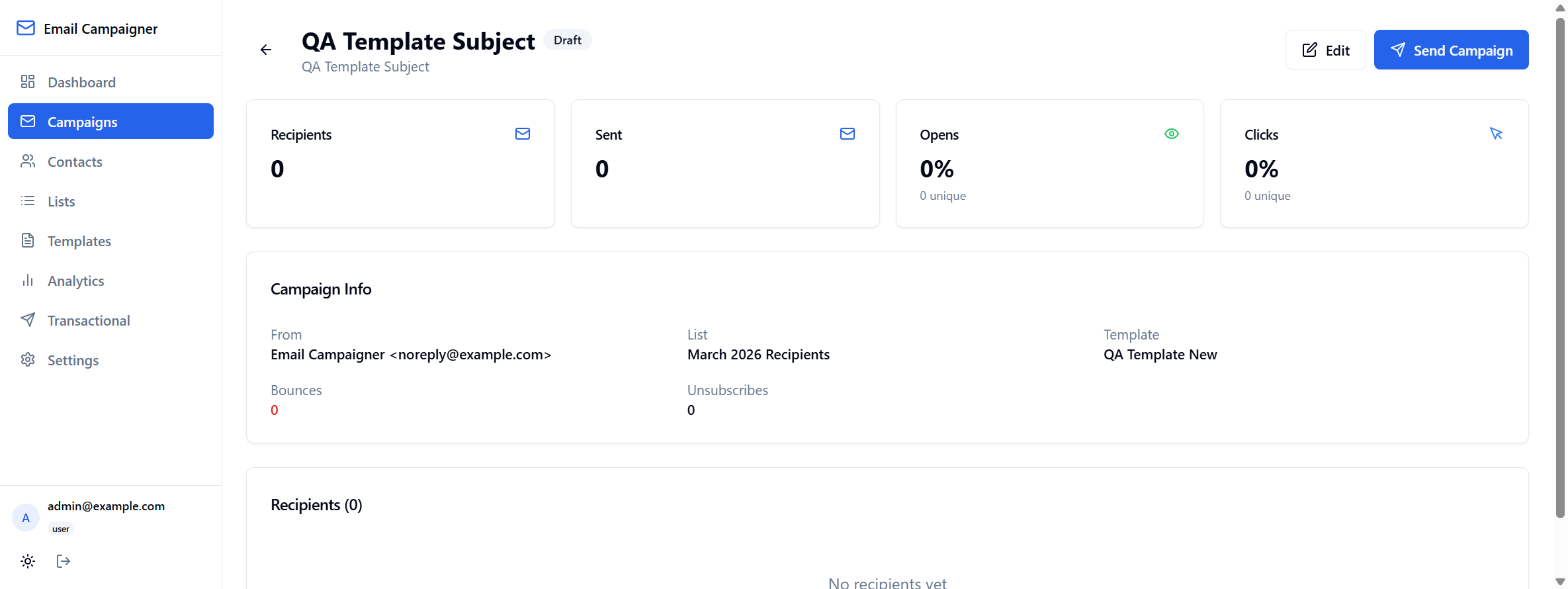
URL: /campaigns/:id
What you see:
- Back arrow, campaign name with status badge, subject line
- Edit and Send Campaign buttons
- Stat cards: Recipients, Sent, Opens, Clicks
- Campaign Info: From, List, Template, Bounces, Unsubscribes
- Recipients table with delivery status
How to use:
- Review campaign stats after sending
- Click Edit to modify the campaign (drafts)
- Click Send Campaign to deliver to subscribed contacts on the list
4.5 Contacts
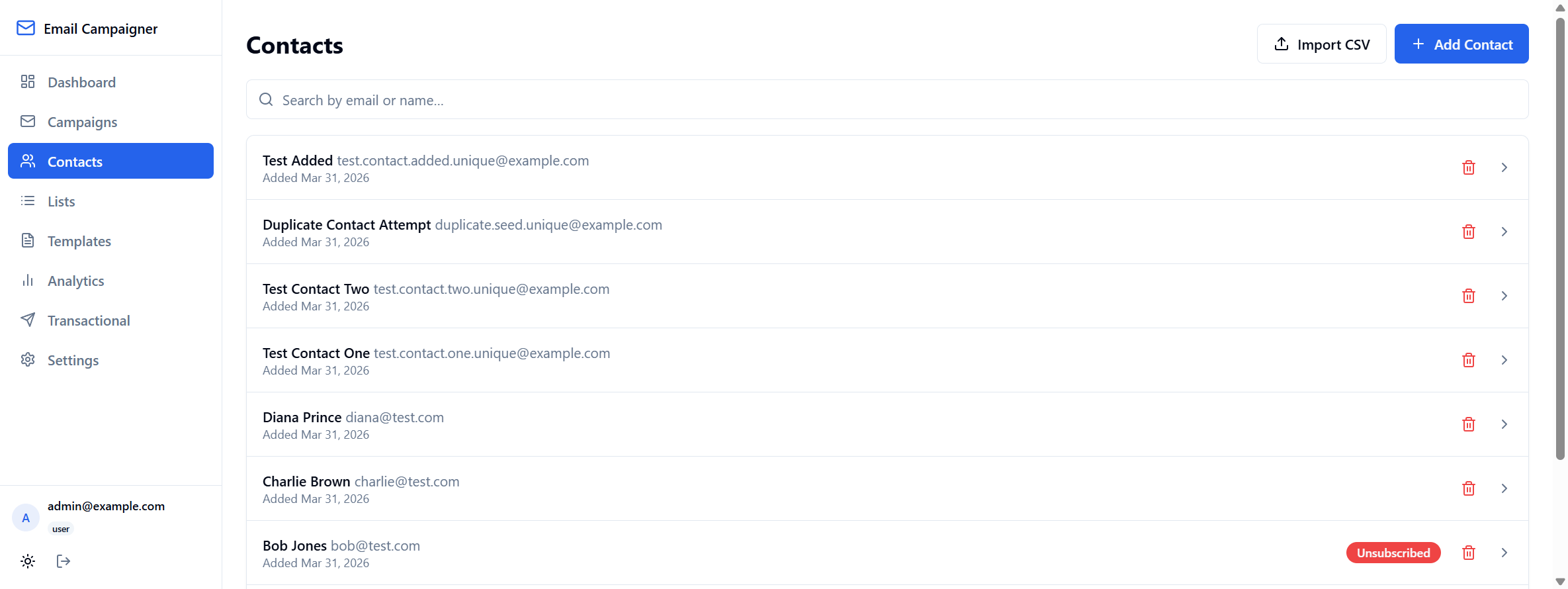
URL: /contacts
What you see:
- Import CSV and + Add Contact buttons
- Search bar; list rows with name, email, date, Unsubscribed badge, delete, detail arrow
How to use:
- Add contacts manually or via CSV import
- Search by name or email
- Open a contact for full detail and campaign history
- Unsubscribed contacts are excluded from future campaign sends
4.6 Lists
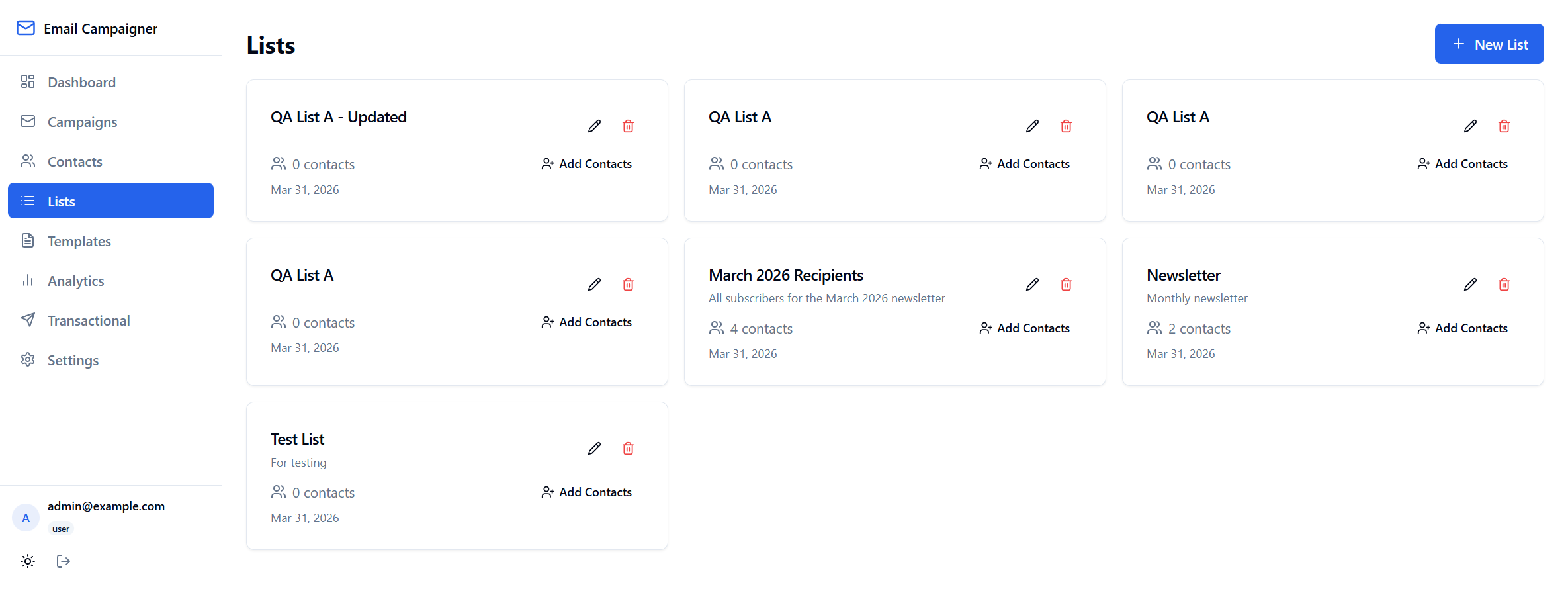
URL: /lists
What you see:
- + New List button
- Cards: name, description, contact count, date, edit/delete, Add Contacts
How to use:
- Create lists and assign contacts
- Select a list as the audience when creating a campaign
- Only subscribed contacts on the list receive the campaign
4.7 Templates
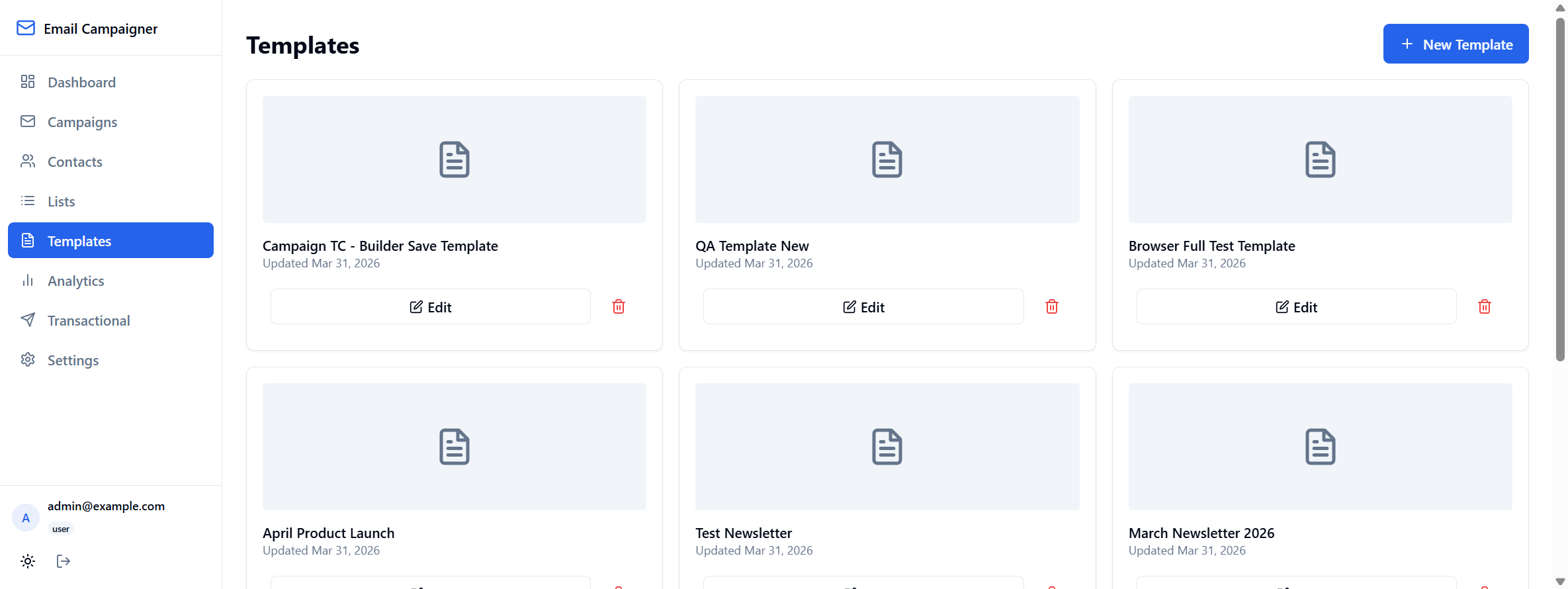
URL: /templates
What you see:
- + New Template button
- Cards: thumbnail, name, updated date, Edit, delete
How to use:
- Create templates in GrapesJS or MJML
- Use Handlebars merge fields (e.g.
{{first_name}}) - Attach a template when creating a campaign
4.8 Analytics
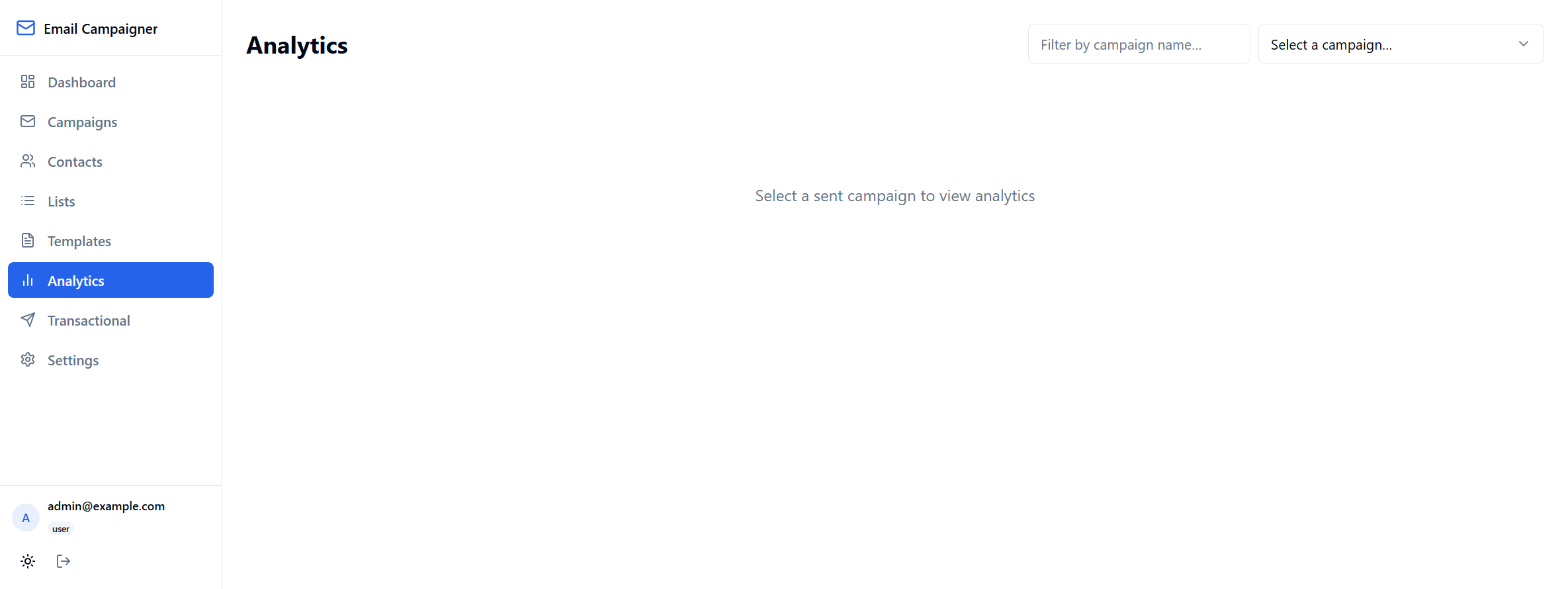
URL: /analytics
Before selecting a campaign: filter field, campaign dropdown, message “Select a sent campaign to view analytics”.
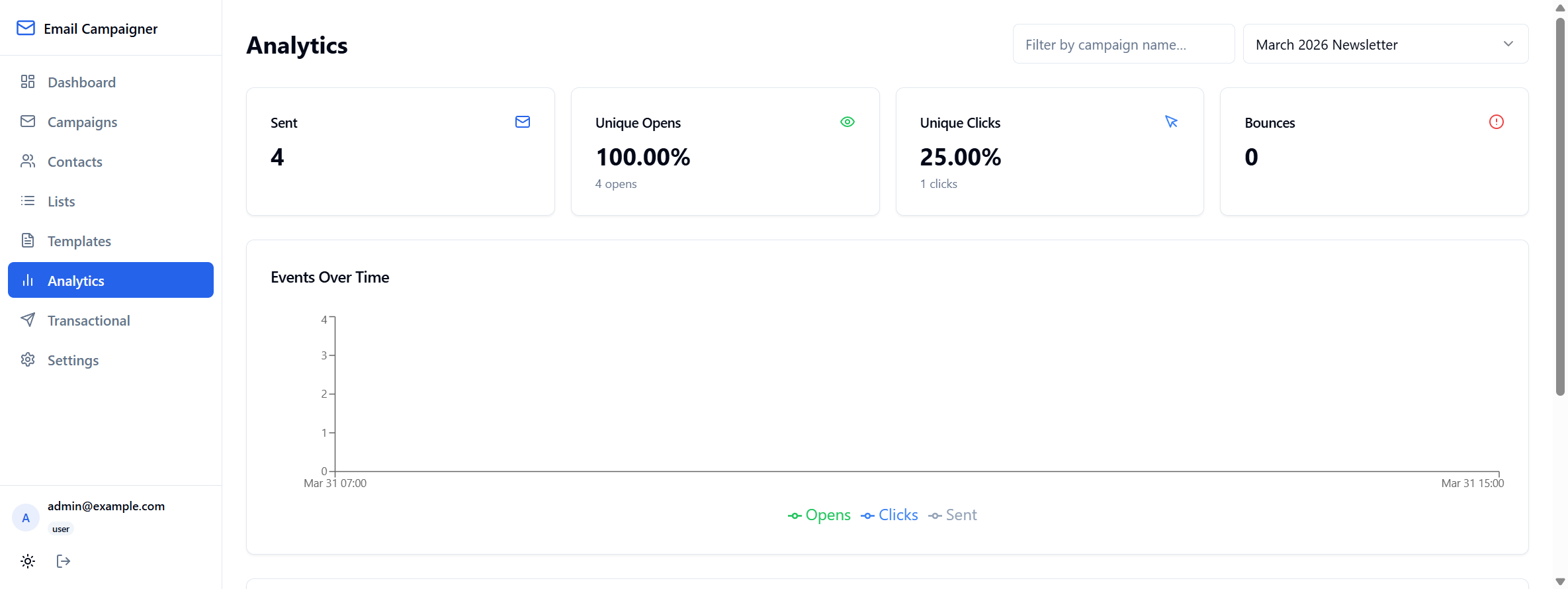
After selecting a campaign: Sent, Unique Opens, Unique Clicks, Bounces; Events Over Time chart; legend (Opens, Clicks, Sent).
How to use:
- Choose a sent campaign from the dropdown
- Filter by campaign name
- Review rates and the timeline
4.9 Transactional emails
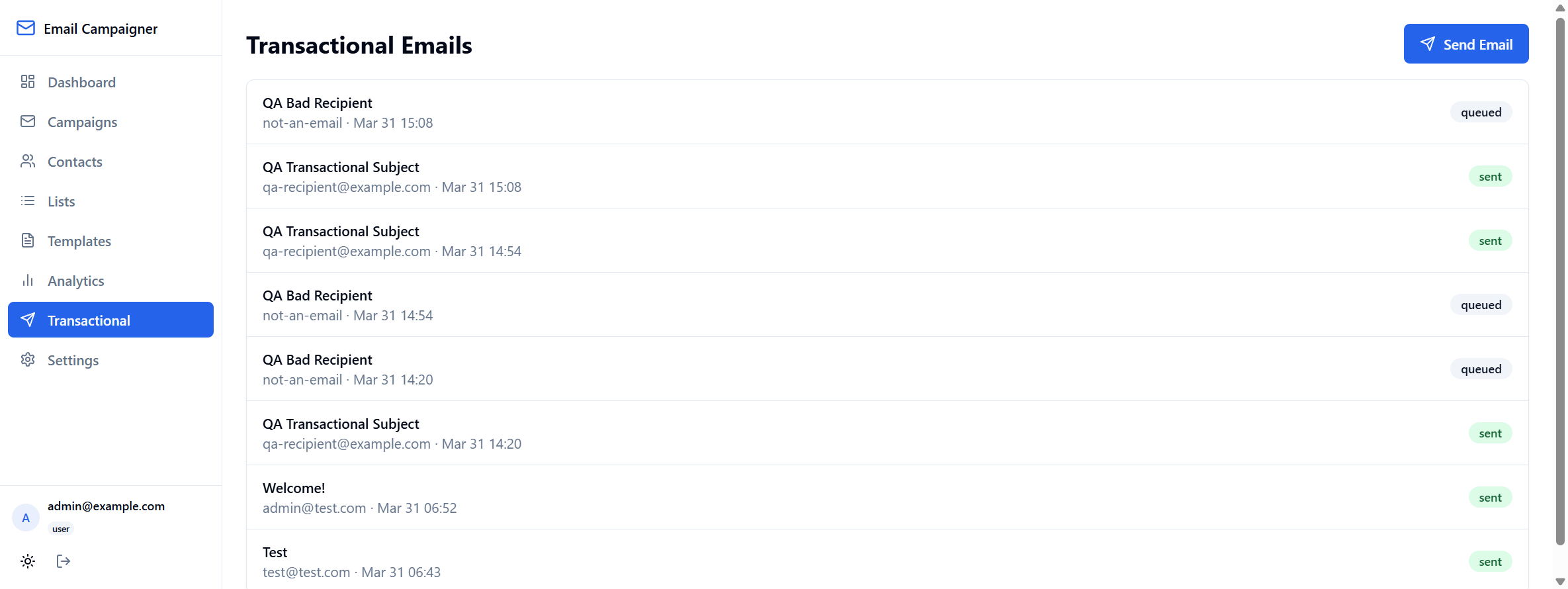
URL: /transactional
What you see: “Transactional Emails” heading, Send Email button, history rows with subject, recipient, time, status (sent / queued).
How to use:
- Click Send Email for one-off sends
- Optional Handlebars variables for personalisation
- Use for welcome messages, receipts, and other non-campaign mail
4.10 Settings
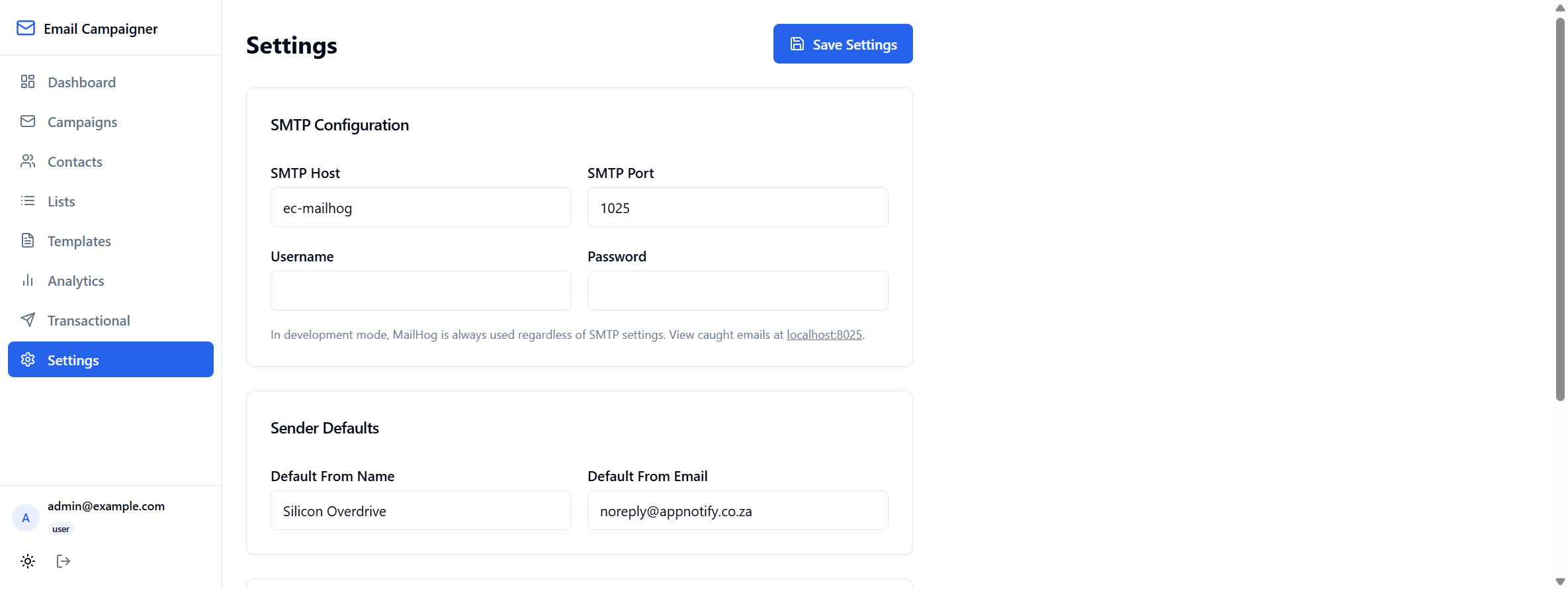
URL: /settings
What you see: Save Settings; SMTP Host, Port, Username, Password; dev note about MailHog; Default From Name and Email.
How to use:
- Configure SMTP for production
- Set default From name and email
- Click Save Settings
- In development, view caught mail at
http://localhost:8025
4.11 Users (admin)
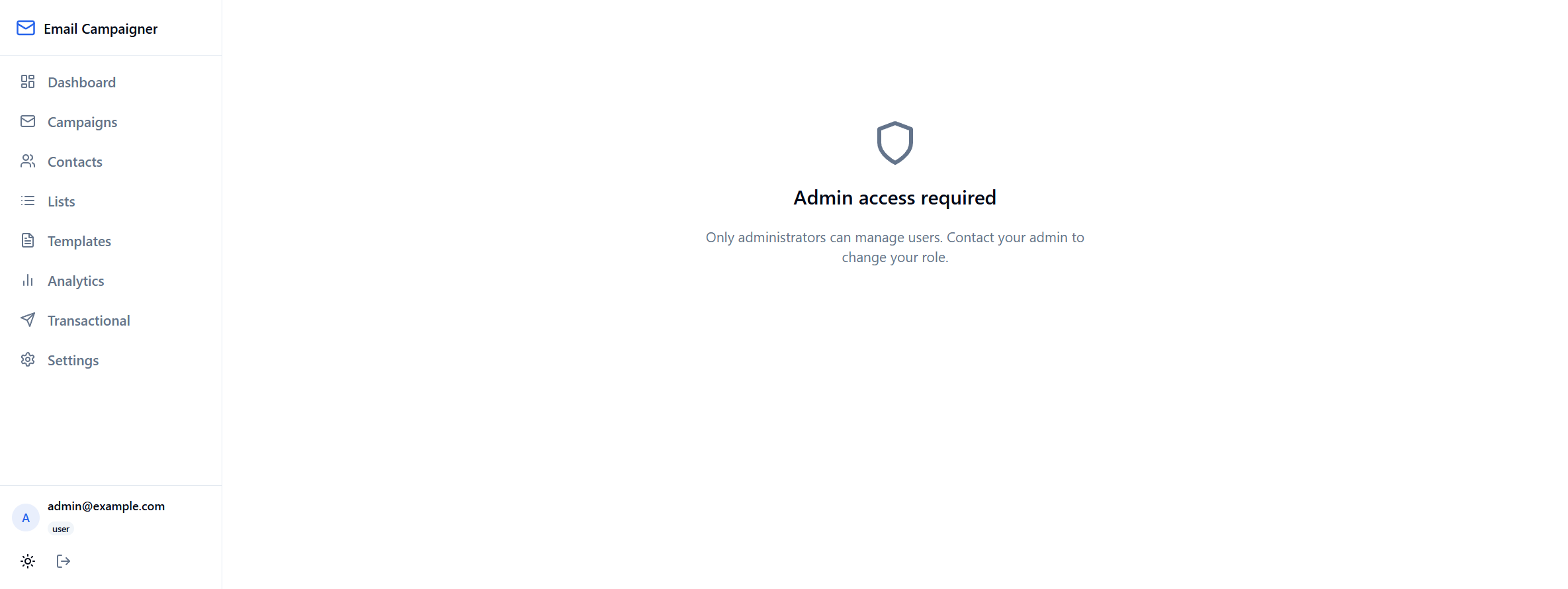
URL: /users
What you see (non-admin): shield icon, “Admin access required”, and explanatory text.
Admin features: list users, invite users, change roles, delete users.
How to use: Restricted to the admin role; regular users must contact an administrator.
5. Database schema
| Table | Purpose |
|---|---|
contacts | Stores email addresses, names, custom fields, subscription status |
lists | Named mailing lists |
list_contacts | Many-to-many relationship between lists and contacts |
templates | Email templates (GrapesJS JSON + compiled HTML) |
campaigns | Campaign metadata, status, list/template associations |
campaign_recipients | Per-recipient send state, tracking tokens, delivery timestamps |
email_events | Event log (sent, opened, clicked, bounced, unsubscribed) |
tracked_links | Rewritten URLs for click tracking per campaign |
tracked_link_clicks | Individual click records with user agent and IP |
transactional_emails | One-off transactional send log |
app_settings | Key-value application settings (SMTP, sender defaults) |
profiles | User profiles with roles (admin, user) |
campaign_settings | AI tone, instructions, send-from, reply-unsubscribe, forward/BCC |
campaign_enriched_emails | Original vs enriched copy, review status, Message-ID |
inbox_messages | Inbound reply log and classification |
6. API endpoints
| Method | Path | Description |
|---|---|---|
| GET | /health | Health check |
| GET/POST/PUT/DELETE | /api/campaigns | Campaign CRUD |
| POST | /api/campaigns/:id/send | Send a campaign |
| POST | /api/campaigns/:id/test | Send a test email |
| GET | /api/campaigns/:id/recipients | List campaign recipients |
| GET/POST/PUT/DELETE | /api/contacts | Contact CRUD |
| POST | /api/contacts/import | CSV import |
| GET/POST/PUT/DELETE | /api/lists | List CRUD |
| POST | /api/lists/:id/contacts | Add contacts to a list |
| GET/POST/PUT/DELETE | /api/templates | Template CRUD |
| POST | /api/templates/compile | Compile MJML to HTML |
| POST | /api/transactional | Send a transactional email |
| GET | /api/transactional | List transactional email history |
| GET | /api/analytics | Overview analytics |
| GET | /api/analytics/:campaignId | Per-campaign analytics |
| GET/PUT | /api/settings | Read/update app settings |
| GET | /api/users | List users (admin) |
| POST | /api/users/invite | Invite a user (admin) |
| GET | /track/open/:token | Open tracking pixel |
| GET | /track/click/:token | Click redirect + tracking |
| GET | /track/unsubscribe/:token | Unsubscribe page |
| GET | /api/campaigns/:id/settings | Campaign AI / mailbox settings |
| PUT | /api/campaigns/:id/settings | Upsert campaign settings |
| POST | /api/campaigns/:id/enrich | Start LLM enrichment job |
| GET | /api/campaigns/:id/enriched | List enriched rows |
| PUT | /api/campaigns/:id/enriched/approve-all | Approve all pending |
| PUT | /api/campaigns/:id/enriched/reject-all | Reject all pending |
| PUT | /api/campaigns/:id/enriched/:emailId/approve | Approve one |
| PUT | /api/campaigns/:id/enriched/:emailId/reject | Reject one |
| POST | /api/campaigns/:id/send-enriched | Send approved enriched |
| GET | /api/campaigns/:id/inbox | Inbound messages |
7. Tracking & compliance
Open tracking
A transparent 1×1 pixel image is injected into each campaign email. When the recipient’s email client loads the image, an “opened” event is recorded.
Click tracking
All links in campaign emails are rewritten to pass through the /track/click/:token endpoint. The system records the click event and redirects the recipient to the original URL.
Unsubscribe
Standard sends: include a link to /track/unsubscribe/:token. Enriched + reply mode: when enabled, sends omit List-Unsubscribe; recipients reply to opt out. Inbound messages are classified (keywords, then LLM), the contact is unsubscribed, and an auto-reply is sent.
Compliance notes
- Unsubscribed contacts are automatically excluded from sends
- List-Unsubscribe headers are used on standard sends; optional omission for enriched reply-based unsubscribe
- Bounce events are recorded for delivery monitoring
- All tracking tokens are unique per recipient per campaign
8. AI enrichment & review
OpenAI rewrites each recipient’s subject/body from the merged template. Operators approve or reject in /campaigns/:id/enrichment, then Send approved. Configure tone, instructions, send-from, and forward/BCC on the campaign detail card or at campaign creation.
Contacts may store enrichment_data (JSON) for extra context (role, company, Apollo exports).
9. Reply mailbox (Microsoft 365)
With MS365_IMAP_* set, the API polls the inbox, processes unseen mail, unsubscribes or forwards per campaign_settings, and logs rows in inbox_messages.
10. Campaign builder (2026 refresh)
Slimmer GrapesJS panels, refined toolbar, collapsible merge-field hints, and an Enrich & review action when AI is enabled.
11. Architecture & data flow diagrams
High-level relationships and the two new pipelines (enrichment and inbound reply handling). Diagrams render in modern browsers via Mermaid.
Generated from Scope_and_User_Guide.md. Open this file from the docs/ folder so screenshot paths resolve correctly. Section 11 diagrams use Mermaid loaded from a CDN.